
To create a high-quality AI-generated profile picture using Photoshop, follow these steps:
🔧 METHOD OVERVIEW
- Generate an AI portrait
- Enhance/edit it in Photoshop
- Export as a professional profile picture
🧠 STEP 1: Generate AI Profile Image
You have two common options:
Option A: Use AI Websites
Platforms like:
- Remini
- Fotor AI Avatar Generator
- PhotoRoom
- Lensa AI
- Artbreeder
- Midjourney (via Discord)
- Bing Image Creator / DALL·E 3 (via ChatGPT)
📝 Prompt example for DALL·E or Midjourney:
“Professional headshot of a confident man/woman, facing forward, soft lighting, clean background, photorealistic style”
Once generated, download the image.
🎨 STEP 2: Edit in Photoshop
1. Open Your Image in Photoshop
- File > Open your AI image.
2. Retouch (Optional)
- Use the Spot Healing Brush Tool (J) to clean up blemishes or AI artifacts.
- Use Liquify (Filter > Liquify) to fix facial structure if distorted subtly.
3. Remove Background
- Use Select Subject, then Select > Inverse > Delete, or use Remove Background (Properties panel).
- Replace with a solid color, gradient, or blurred background.
4. Enhance Color & Light
- Use Adjustment Layers:
- Brightness/Contrast
- Color Balance
- Hue/Saturation
- Add subtle sharpening (Filter > Sharpen > Unsharp Mask)
5. Crop & Frame
- Use the Crop Tool (C), set the aspect ratio to 1:1 for most profile pictures.
- Leave headroom and center the face.
💾 STEP 3: Export
- File > Export > Export As
- Format: JPEG or PNG
- Size: Around 500x500px or 1080x1080px
- Keep resolution at 72–150 DPI for web
Thank you for reading! Please stay connected with me on all my social media platforms. @djmakeart
For more updates, tips, and inspiration. Don’t forget to explore my website djmakeart.com for exclusive content and projects. Let’s create and grow together—see you there!
Contact us through www.djmakeart.com/contact-us/
🛠 Step-by-Step: How to Create a Vertical Video Template
1. Start a New Project Open DaVinci Resolve, and create a New Project. Name it…

Why Yoast seo setting doesnt appear
If the Yoast SEO settings are not appearing in your WordPress dashboard or on your…

Why Yoast SEO may be malfunctioning on your website
Yoast SEO may be malfunctioning on your website for several reasons. Here are some common…

Why the “Add Post to Story Every Time” Option Doesn’t Appear on My Account
If you’ve noticed that the “Add post to story every time” option doesn’t appear on…

Why is SEO Yoast option is not working ?
If the Yoast SEO plugin isn’t working as expected on your website, here are some…
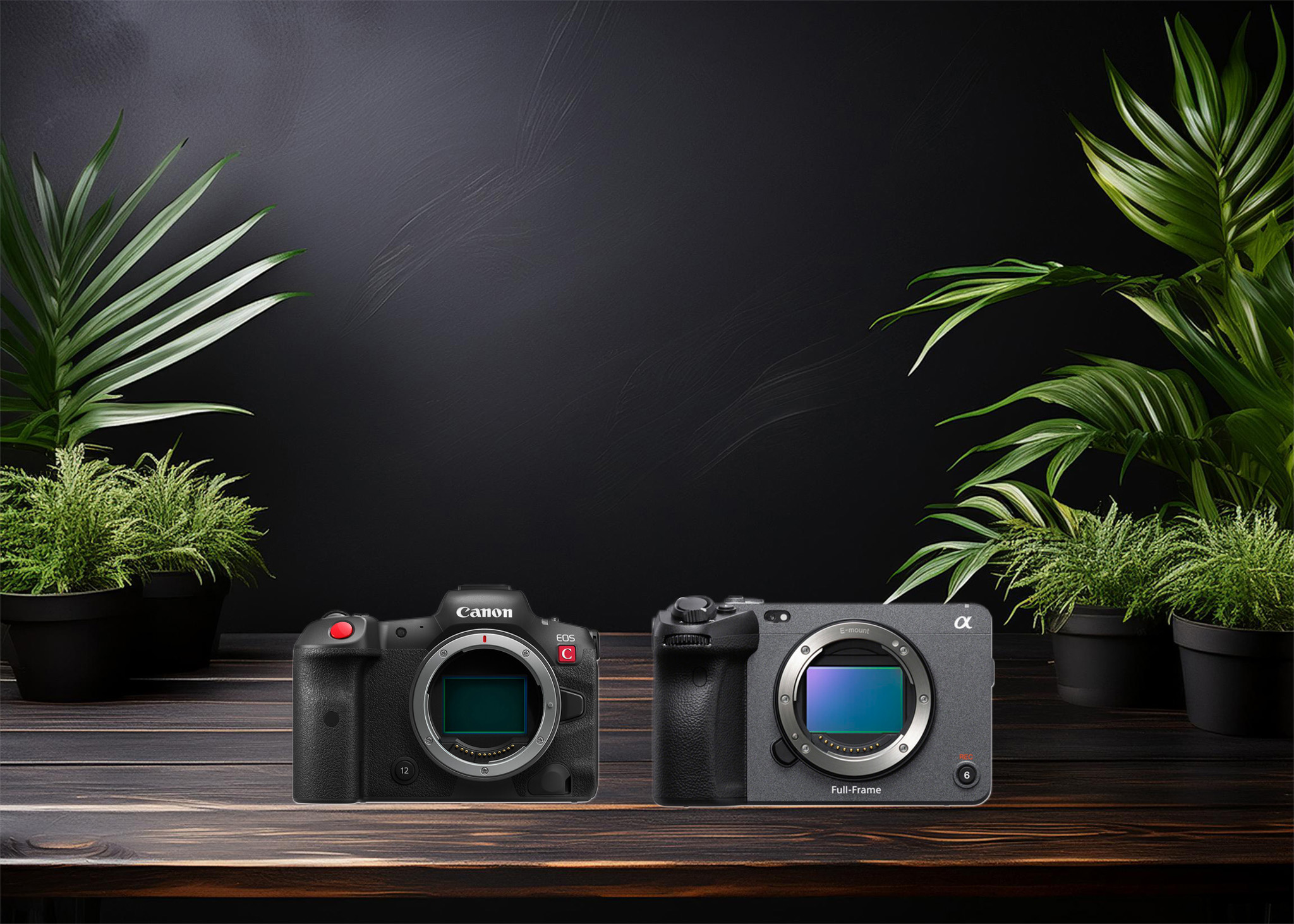
Which camera is better, Canon or Sony?
Choosing between Canon and Sony depends on your specific needs, preferences, and the type of…
Where to Buy the Best Used Camera Gear in 2025: Trusted Sites & Smart Tips
Whether you’re a budding photographer, a seasoned videographer, or a content creator building your setup…

Where can I find free VFX content for editing?
You can find free VFX (visual effects) assets from several reliable online sources. These include…

Where can I find free VFX content for editing?
You can find free VFX (visual effects) assets from several reliable online sources. These include…
Welcome to the DJMakeArt website
