How to Use Templates in CapCut
CapCut has become one of the most popular video editing apps for creators on TikTok, Instagram Reels, and YouTube Shorts. One of its most powerful features is templates, which allow you to create professional-looking videos in minutes without advanced editing skills. If you’re trying to grow your content faster, templates can seriously speed up your workflow while keeping your videos trendy and engaging.
In this guide, you’ll learn exactly how to use CapCut templates, how to customize them, and how to get the most out of them for viral content creation.
What Are CapCut Templates?
CapCut templates are pre-designed video editing projects made by other creators or CapCut itself. These templates already include:
- Transitions
- Music sync
- Effects
- Text animations
- Timing structure
All you need to do is replace the media (photos or videos) with your own content, and the template automatically builds the edit for you.
Think of it like a “plug-and-play” video editor.
Why You Should Use Templates in CapCut
Using templates can save hours of editing time and help you stay consistent with trends.
1. Faster Content Creation
Instead of building edits from scratch, you just insert your clips and export.
2. Trend-Based Editing
Most viral CapCut templates are based on trending sounds and transitions.
3. Beginner Friendly
You don’t need advanced editing knowledge to create high-quality content.
4. Consistent Quality
Templates ensure your videos maintain a professional and polished look.
How to Find Templates in CapCut
Finding templates inside CapCut is simple:
Step 1: Open CapCut
Launch the CapCut app on your phone.
Step 2: Tap on “Templates”
At the bottom menu, select the Templates tab.
Step 3: Browse or Search
You can:
- Scroll through trending templates.
- Search using keywords like “fitness,” “vlog,” “travel,” or “beat sync”
- Look for viral-style edits used on TikTok.
Step 4: Preview Templates
Tap on a template to preview how it looks before using it.
How to Use a CapCut Template (Step-by-Step)
Once you’ve found a template you like, follow these steps:
Step 1: Select “Use Template”
Tap the Use Template button.
Step 2: Choose Your Media
Upload photos or videos from your gallery that match the template slots.
Step 3: Adjust Clips (if needed)
Some templates allow minor adjustments like:
- Trimming clips
- Replacing order
- Adjusting duration
Step 4: Preview Your Video
CapCut will automatically generate the edit. Preview it before exporting.
Step 5: Export the Video
Tap Export and choose your resolution (1080p is recommended for social media).
How to Customize CapCut Templates
Even though templates are pre-made, you can still customize them to match your brand or style.
Change Text
Replace default text with your own:
- Quotes
- Captions
- Brand name
- Call-to-action
Adjust Music
You can:
- Keep the original trending sound.
- Replace with your own audio.
- Lower or increase volume
Add Effects
CapCut allows you to enhance templates with:
- Filters
- Color grading
- Extra transitions
- Stickers or overlays
Match Your Brand Style
If you’re a content creator like DJMakeArt, consistency matters. Try using:
- Similar fonts
- Brand colors
- Repeating intro/outro styles
Best Types of Templates to Use
Not all templates perform the same. Here are some of the best ones for growth:
1. Viral TikTok Templates
Fast cuts, beat sync, and trending audio.
2. Before & After Templates
Great for transformations (fitness, editing, photography).
3. Cinematic Templates
Perfect for travel, lifestyle, and storytelling content.
4. Photo Slideshow Templates
Good for Instagram reels and motivational posts.
5. Gaming Templates
High-energy edits with glitch effects and sound sync.
Tips to Make Templates Go Viral
Using templates is easy, but going viral takes strategy.
Use Trending Audio
Always check what sounds are currently trending on TikTok or Instagram.
Post Consistently
The more you post, the higher your chances of hitting a viral video.
Keep Videos Short
Aim for 7–15 seconds for maximum retention on Shorts and Reels.
Hook Viewers Fast
The first 2–3 seconds matter most. Choose templates with strong opening visuals.
Add Your Own Twist
Don’t just use templates as-is—add personality or branding.
Common Mistakes to Avoid
Even though CapCut templates are simple, many creators make mistakes:
Overusing the Same Template
This makes your content repetitive.
Ignoring Branding
If every video looks different, your audience won’t recognize you.
Using Low-Quality Clips
Templates can’t fix blurry or low-resolution footage.
Not Checking Audio Rights
Make sure trending sounds are allowed on your platform.
Final Thoughts
CapCut templates are one of the fastest ways to create high-quality content without needing advanced editing skills. Whether you’re growing a personal brand, running a business page, or building a content channel, templates can help you stay consistent and produce viral-ready videos in minutes.
The key is not just using templates—but customizing them, staying on trends, and adding your own creative identity.
Thank you for reading! Please stay connected with me on all my social media platforms. @djmakeart
Instagram
YouTube
TikTok
Facebook
X (Twitter)
For more updates, tips, and inspiration. Don’t forget to explore my website, djmakeart.com, for exclusive content and projects. Let’s create and grow together—see you there!
Contact us through Contact Page

🛠 Step-by-Step: How to Create a Vertical Video Template

Why Yoast seo setting doesnt appear

Why Yoast SEO may be malfunctioning on your website

Why the “Add Post to Story Every Time” Option Doesn’t Appear on My Account

Why is SEO Yoast option is not working ?
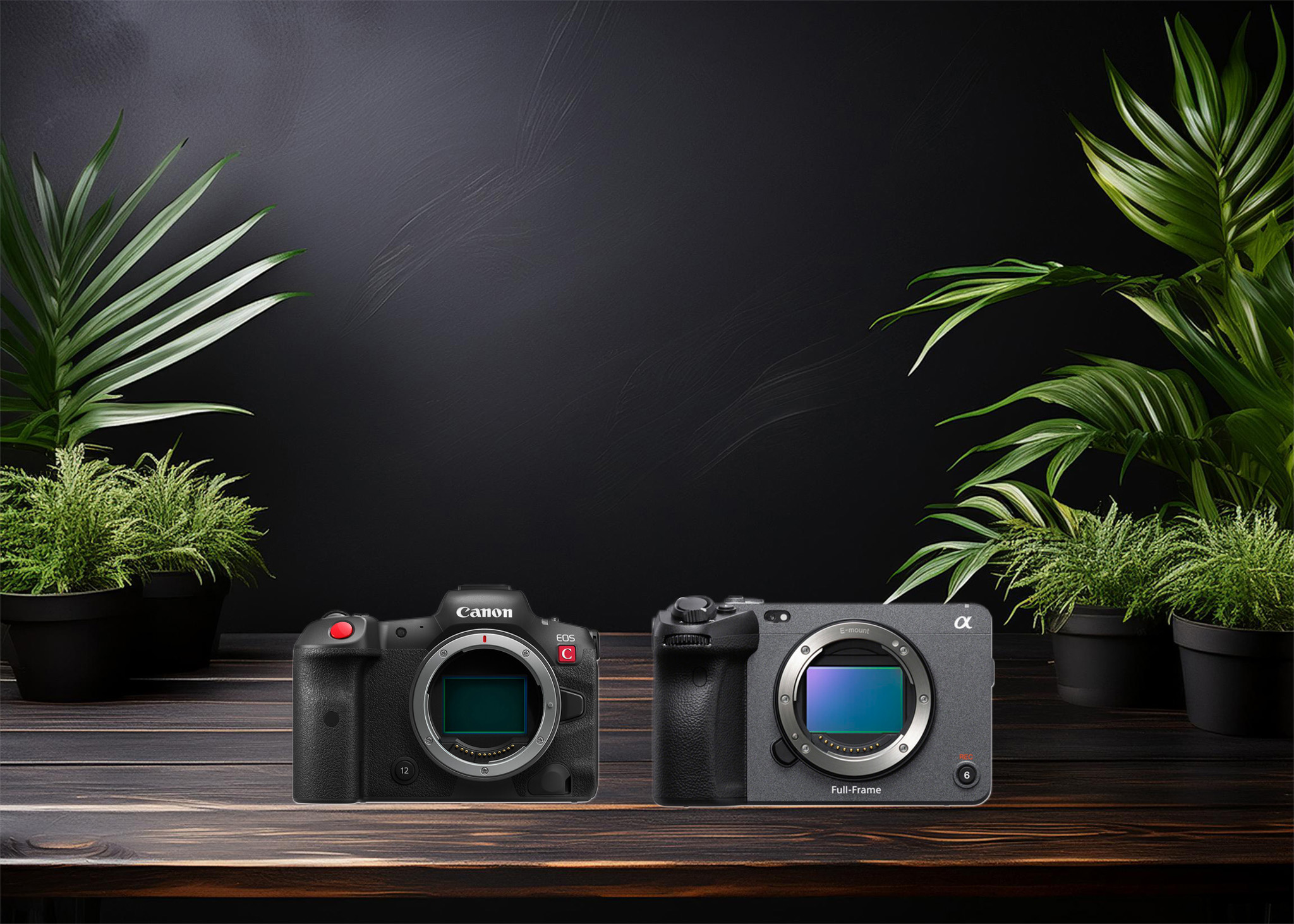
Which camera is better, Canon or Sony?

Where to Buy the Best Used Camera Gear in 2025: Trusted Sites & Smart Tips

Where can I find free VFX content for editing?

Where can I find free VFX content for editing?
Welcome to the DJMakeArt website